






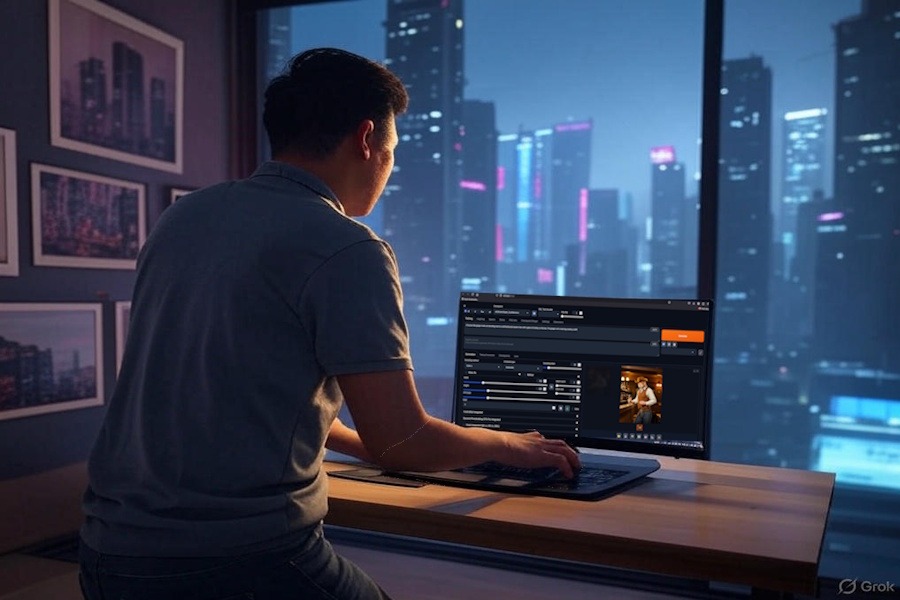
Running creative tools on your own computer feels different from renting space on someone else’s machine. You control the files, the models, the prompts, and the output folder. That is the real appeal of AI image generation at home: privacy, repeat tests, and no monthly credit panic. For American creators, small agencies, Etsy sellers, YouTube thumbnail makers, and designers testing ideas after hours, this matters. A private workflow lets you experiment without feeding every draft into a cloud tool, which is why many builders now treat local software as part of a serious private creative workflow. The tradeoff is setup. Your computer must have enough graphics memory, the right drivers, a clean install path, and a model file that matches your hardware. Start with the simple route. Pick one interface, install it cleanly, make one image, then add extras later. That order saves more time than any trick you will find in a forum thread.
Start With the Machine, Not the Software
Most bad installs begin before anyone downloads a file. The user sees a beautiful sample image, grabs a random package, and then wonders why the first run takes forever or crashes. The smarter move is boring: check your hardware, choose the right interface, and set expectations before you touch the install button.
A local Stable Diffusion setup does not need a Hollywood workstation, but it does need a graphics card that can carry the work. NVIDIA cards on Windows are still the easiest path for many home users because most guides, fixes, and test cases start there. That does not make every other system useless. It only means the smoothest road has more tire marks.
Why your GPU decides the whole experience
The graphics card does the heavy lifting. More VRAM gives you room for larger models, bigger images, and extra tools like ControlNet or upscalers. A card with 8GB of VRAM can be useful for many beginner workflows. A 12GB card gives you more breathing room. A 16GB card or higher feels calmer when you start stacking add-ons.
CPU-only generation can run, but patience becomes part of the cost. A laptop without a strong GPU may still open the interface and produce an image, yet the wait can drain the fun from learning. The non-obvious truth is that a slower machine can teach better habits. You stop spraying random prompts and start changing one setting at a time.
For a U.S. freelancer, that matters. Say you are making five product mockups for a local candle brand in Ohio. A fast GPU helps, but clean testing helps more. Keep the same seed, change the lighting phrase, compare results, then save the better prompt. Speed is nice. Repeatability pays.
Pick AUTOMATIC1111 or ComfyUI before installing anything
AUTOMATIC1111 is the easier first home for many beginners. It has tabs, sliders, model folders, and a web page that opens in your browser. The project’s own instructions include a Windows NVIDIA release package route where users download a zip, run an update file, then run the app file.
ComfyUI feels different. It uses nodes, which means you can see the path from model to prompt to sampler to image. That looks strange on day one, but it becomes powerful when you want to save a full workflow and repeat it later. The official ComfyUI manual covers local self-hosted installation across Windows, macOS, and Linux.
Do not install both on the same afternoon unless you enjoy sorting folders. Choose Stable Diffusion WebUI if you want a friendlier start. Choose ComfyUI if you already think in systems, editing chains, or repeatable templates. Both can make strong images. The better tool is the one you will actually learn.
AI Image Generation Runs Better When Your PC Matches the Job
Once the hardware choice is clear, the install becomes less scary. You are not “installing artificial intelligence.” You are setting up a local web app, connecting it to Python, pointing it at model files, and opening a browser page on your own machine. That is less mystical than it sounds.
The trick is to avoid messy paths. Put the folder somewhere simple, such as C:\AI\stable-diffusion-webui on Windows or a clean home folder on macOS/Linux. Avoid OneDrive, iCloud Desktop sync, special characters, and deep folder names. Many install errors are not dramatic. They are path problems wearing a scary mask.
The clean Windows route for beginners
For many Windows 10 and Windows 11 users with NVIDIA cards, the release package route is the least painful way to begin. The current AUTOMATIC1111 instructions point users toward downloading the package, extracting it, running the update script, and then launching the run script.
Before that, update your NVIDIA driver from NVIDIA’s own app or website. Restart the computer. Then create one simple folder near the root of your drive. Do not bury it inside Downloads, a synced cloud folder, or a project folder with spaces and odd symbols. This sounds fussy until you lose an hour to a path error.
After the first launch, the app may download packages and take longer than expected. Let it finish. When the browser opens, create one small test image with plain settings. Do not install ten extensions yet. One image proves the base system works. After that, you can add models, LoRAs, upscalers, and workflow tools with less fear.
macOS and Linux need a calmer mindset
Apple Silicon Macs can run local image tools, but the feel is different from a Windows NVIDIA desktop. The AUTOMATIC1111 Apple Silicon guide uses Homebrew and installs items such as Python, Git, CMake, protobuf, Rust, and wget before cloning the project. That path is not impossible. It rewards careful copying.
Linux users often have an easier time than beginners expect, mainly because the terminal is normal there. The hard part is driver sanity. If CUDA, ROCm, or Python versions fight each other, the install can feel haunted. Keep notes as you go. Write down the Python version, driver version, and folder path. Future you will be grateful.
A good private image generator is not built in one wild night. It grows in layers. First the app runs. Then one model works. Then you add a second model. Then you learn where outputs live. That slow order feels less exciting, but it prevents the common beginner mistake: breaking a working install before understanding what made it work.
Models, Folders, and Settings Decide Your First Results
The interface is only the front door. The model file shapes the look, style range, and memory demand of your results. Beginners often blame prompts when the real issue is model choice. A photoreal model, an anime model, and a general model do not hear the same prompt in the same way.
Think of the model as the camera, lens, lighting instinct, and art training all packed into one file. You can write a strong prompt, but the model still decides what kind of world it prefers. That is why your first model should be boringly dependable. Learn on a general checkpoint before chasing every viral download.
Put model files where the interface expects them
Stable Diffusion WebUI has model folders for checkpoints, LoRAs, embeddings, and other assets. Place a checkpoint in the checkpoint folder, restart or refresh the model list, then select it in the interface. ComfyUI also has a model folder structure, though its node system makes the file path feel more visible once you start building workflows.
Do not rename every downloaded file into something cute. Keep useful names that include the model family or version. Six weeks later, realistic-photo-v3.safetensors tells you something. bestmodel-final-final.safetensors does not. This is a small habit with a big payoff.
Licensing deserves attention too. Stability AI’s license page explains that its model licenses carry terms, including different treatment for some commercial uses and self-hosting benefits. Before using outputs for paid ads, book covers, product packaging, or client work, read the model license. A file being easy to download does not mean every business use is risk-free.
Start with safe settings before chasing style
Your first settings should be plain. Use a modest image size, a common sampler, and a reasonable step count. Create several tests with the same seed. Change one thing each time. That teaches you faster than a pile of random images.
A practical starting pattern looks like this:
- Pick one checkpoint.
- Use one clear prompt.
- Keep the seed fixed.
- Change one setting.
- Save the best result and the prompt.
That little sequence beats guesswork. It also makes your beginner guide to prompt writing easier to connect later, because you are not teaching prompts in a vacuum. You are teaching prompts inside a working system.
Here is the counterintuitive part: the fanciest settings often make beginner images worse. High steps can waste time. Huge image sizes can create odd hands, strange faces, or memory crashes. Too many negative prompt phrases can flatten the image. Clean settings make problems easier to see.
Keep the Setup Private, Stable, and Easy to Repair
Privacy is not automatic merely because the tool runs on your computer. Local work reduces outside exposure, but your habits still matter. Models, extensions, browser add-ons, shared folders, and cloud backups can all leak more than you meant to share.
A serious local Stable Diffusion setup has two goals. It should create images well, and it should be easy to repair after something breaks. That second goal gets ignored until update day arrives. Then it becomes the whole story.
Treat extensions like browser plugins with more power
Extensions can add features for faces, poses, batch tools, style helpers, and editing. Some are excellent. Some are abandoned. Some work until one update changes a dependency. Install slowly. Add one extension, restart, test, then move on.
This is where ComfyUI’s node approach has an advantage for organized users. A saved workflow can show the full chain of choices. AUTOMATIC1111 can be faster for casual use, but a tab-based interface may hide how many pieces are involved. Neither approach is “more private” by default. Your download habits decide that.
Avoid pasting sensitive client prompts into public Discords, forums, or model comment sections while asking for help. Remove names, addresses, product details, and unreleased campaign ideas. A private image generator loses its purpose when the troubleshooting trail gives away the work.
Back up the parts that matter, not the whole mess
You do not need to back up every cache file. Save what would hurt to lose: prompts, settings notes, favorite seeds, custom workflows, LoRAs you rely on, and the exact model names used for client work. For a small studio in Texas making seasonal ad concepts, that record can save a campaign when a client asks for “the same look, but for July.”
Create a simple folder called AI-notes. Keep a plain text file with install date, app name, driver version, model names, and any launch flags. Add another file for prompts that worked. This sounds too simple. It works because it matches how real people fix real problems under deadline pressure.
Updates should be boring. Read the project page, back up key files, update one tool, and test one known prompt. The official AUTOMATIC1111 project page is the better place to verify current install notes than a random copied blog post, especially when packages change over time. For privacy habits, keep an AI tool privacy checklist near your publishing process so creative speed does not outrun common sense.
Conclusion
Local creative software rewards patience more than bravado. The person who wins is not the one who installs every model by midnight. It is the one who builds a clean base, tests one piece at a time, and keeps notes that still make sense next month. That is the quiet power of running your own system. You can experiment without asking a cloud tool for permission, and you can keep rough ideas closer to home. AI image generation also becomes more useful when it stops feeling like a slot machine. Stable folders, sane settings, and repeatable prompts turn it into a tool you can trust for drafts, mood boards, thumbnails, ads, and visual planning. Start small, protect your files, and learn the machine in front of you. Your best results will come after the install, when the setup fades into the background and the work gets your full attention.
Frequently Asked Questions
How much VRAM do I need to run Stable Diffusion locally?
For basic image work, 8GB of VRAM can be enough with careful settings. A 12GB card gives more room for larger images and extras. Higher VRAM helps when using heavier models, ControlNet, upscaling, or several tools in one workflow.
Is AUTOMATIC1111 better than ComfyUI for beginners?
AUTOMATIC1111 is often easier for beginners because it uses familiar tabs, sliders, and buttons. ComfyUI is better when you want visible workflows and repeatable chains. Start with the interface that matches how you think, not the one people argue about online.
Can I install Stable Diffusion on a normal laptop?
A normal laptop may run it if the hardware is strong enough, but speed and heat can become problems. NVIDIA gaming laptops usually do better than thin office laptops. Without a capable GPU, image creation may feel slow enough to frustrate learning.
Does running Stable Diffusion locally protect my prompts?
Local running keeps prompts and outputs on your machine during normal use. Privacy still depends on your habits. Be careful with cloud-synced folders, third-party extensions, crash logs, screenshots, and public help posts that reveal client or personal details.
What is the safest first model to download?
Choose a well-known general checkpoint from a trusted source and read its license before using it for paid work. Avoid random uploads with poor descriptions. A dependable model teaches settings, prompt control, and folder management better than a flashy niche model.
Why does my first image take so long to generate?
The first run may download packages, load the model, create caches, or prepare files your system needs later. After that, generations often become faster. If every image stays slow, check VRAM limits, image size, drivers, and whether the tool is using the GPU.
Can I use local Stable Diffusion images for client projects?
Often yes, but the model license matters. Some models allow broad use, while others restrict commercial work or certain outputs. Keep records of model names, license pages, prompts, and final files when producing paid designs, ads, covers, or product visuals.
What should I do when an update breaks my install?
Stop changing things and return to the last known working setup. Check the project page, read recent issue notes, and test with one simple prompt. Keep backups of settings, workflows, and model lists so repair does not become a full reinstall.